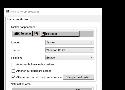
RetroBar, vous permet de retrouver l'apparence de Windows 95, 98, Me, 2000, ou XP.
En cliquant dessus, vous retrouvez le menu de Windows 10 / 11.


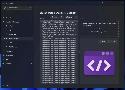
Quand on est développeur, il y a parfois certains trucs dont on a besoin qui nécessite de chercher un site web ou un petit outil pour le faire rapidement.
DevToys simplifie votre quotidien en vous proposant des tas d’outils pour effectuer des tâches simples avec vos données. DevToys est également capable de détecter le meilleur outil capable de traiter les données que vous avez copiées dans le presse-papiers et vous pouvez même utiliser plusieurs instances du logiciel en même temps.
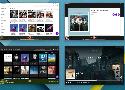
🎵 Logiciel qui joue et gère votre bibliothèque musicale.
Fonctionnalités :
- listes de lecture
- visuels
- paroles synchronisées
- pitch
- shift
- ...

Capturez une page web, expliquez-la avec des flèches, des cercles, du texte tout comme Snagit, puis partagez ou envoyez-la.
https://addons.mozilla.org/fr/firefox/addon/explain-and-send-screenshots/

Émulateurs x86 qui permettent au travers d’une page web de faire tourner d’anciens OS tels que Windows 95, Windows 2000 ou encore ReactOS. Mais également des trucs encore d’actualité comme FreeDOS, OpenBSD ou Haiku.
Template Maker : générer et télécharger des modèles d’objets à imprimer et à découper.

Si vous êtes utilisateur de Linux et que vous manipulez un peu de son pour du streaming, de l'enregistrement ou autre, voici EasyEffects. Cet outil est le successeur de PulseEffects et utilise le serveur audio Pipwire. Grâce à EasyEffects vous pourrez appliquer des effets à vos périphériques d'entrée audio (micro) à l’aide d’un equalizer, d’un limiteur, d’un compresseur, ajouter de la reverb…etc.
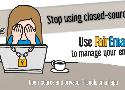
FairEmail est un client mail pour Android sous licence libre, très respectueux de la protection de votre vie privée.
FairEmail ne stocke absolument aucune donnée sur des serveurs tiers, il bloque tous les trackers présents dans les messages, et essaye de reformater les messages pour vous éviter de tomber dans des pièges de phishing.

Une liste de tous les trucs merdique à virer sous Android et tous ceux qu'il ne faut pas virer.

Renforcer la sécurité de Firefox
browser.privatebrowsing.autostart = true
This customization will always open your Firefox browser in incognito mode, which can be very helpful in hiding your browser data from another person operating the same system.
It will also prevent storing history, cookies, and site data in your browser, making it harder for websites and third-party apps to track you. Even though, your ISP can still take a look at the sites you were visiting.
media.peerconnection.enabled = false
WebRTC, aka Web Real-Time Communication, allows sharing of voice, video chat, and P2P sharing of files through your browser. It might be useful in some cases, but enabling it might bypass your encrypted tunnel created by a VPN, exposing your IP address.
Disabling this feature will prevent or cause a problem while accessing web applications that depend upon this technology, such as Google Meet, Discord, Snapchat, etc.
privacy.resistFingerprinting = true
Enabling this feature will make Firefox more resistant to browser fingerprinting. However, there are multiple metrics while fingerprinting. Enabling this feature will not guarantee your complete anonymity.
Even Firefox users criticized this feature in forums when it was first introduced.
privacy.trackingprotection.fingerprinting.enabled = true
Fingerprinting scripts collect information about your browser and device configuration, such as your operating system, screen resolution, and other settings.
By compiling these pieces of data, fingerprinters create a unique profile of you that can be used to track you around the Web.
privacy.trackingprotection.cryptomining.enabled = true
It will prevent websites from running crypto mining scripts that use your computer’s central processing unit (CPU) to invisibly mine cryptocurrency.
Enabling only prevents sites from doing crypto mining in your system. However, installing malicious software can make your system vulnerable to crypto mining. Always check the source when you download an application from the internet.
privacy.firstparty.isolate = true
The feature restricts cookies, cache, and other data access to the domain level so that only the domain that dropped the cookie or file on the user system can access it, which prevents tracking across multiple domains.
In case, if you set the Enhanced Tracking Protection to the Strict option, you do not have to change anything.
privacy.trackingprotection.enabled = true
Tracking Protection is a new platform-level technology that blocks HTTP loads at the network level. It is based on the Safe Browsing technology that powers our phishing and malware protection.
This feature was part of the Polaris initiative.
geo.enabled = false
By default, this setting is set to false to prevent websites from tracking your precise location. However, there is a separate mechanism that many sites use that is about as accurate for desktop or laptop computers, and that is location lookup by IP address.
You can not prevent it unless you were using a secure VPN on your system, but still disabling this takes you one step further in your privacy.
network.cookie.cookieBehavior
This preference will set the value in the integer as shown below.
0 = Accept all cookies by default
1 = Only accept cookies from the originating site (block third-party cookies)
2 = Block all cookies by default
3 = Lock cookies from unvisited sites
4 = New Cookie Jar policy (prevents storage access to trackers)
The range from 1 to 3 will improve your security. I suggest setting 2 or 3. However, the new Cookie Jar Policy (option 4) will provide you with more protection but might break some websites.
network.cookie.lifetimePolicy = 2
This is another integer type preference that you should set to a value of 2. It will tell Firefox to automatically delete all the cookies at the end of the session. You can even switch to another option as per your needs from the below list:
0 = Accept cookies normally
1 = Prompt for each cookie
2 = Accept for the current session only
3 = Accept for N days
network.dns.disablePrefetch = true
Settings this preference to true will prevent Firefox from performing domain name resolution proactively and in parallel for hyperlinks, images, CSS, JavaScript, and other webpage content.
However, enabling this preference comes with some risks that have been described in this paper.
network.prefetch-next = false
This setting helps to prefetch pages that are likely to be visited, so the browser downloads them immediately and they can be displayed when the user requests them.
Setting this preference to false will prevent pages from being prefetched by Firefox. Which lets all pages load only when they are visited by the user.
webgl.disabled = true
WebGL can fingerprint your device, so disabling this feature will be a good choice. However, I’ve found many websites do not work when the setting is set to disable. If that happens, switch back to default and test if it works.
dom.event.clipboardevents.enabled = false
It will prevent websites from getting notifications if you copy, paste, or cut something from the page. However, to work on Google Docs using the keyboard (Ctrl+C, Ctrl+X, Ctrl+V), it needs dom.event.clipboardevents.enabled to be enabled.
media.eme.enabled = false
This disables the playback of DRM-controlled HTML5 content. See details here.
Des outils pour retrouver des informations sur une personne, un pseudo, une adresse mail, une adresse IP...
Logiciel open source sans limite d'utilisation - convertisseur tous formats codecs professionnels et standards

Tous les ans, le gouvernement met à jour le socle interministériel de logiciels libres (SILL) afin d'indiquer quels sont les logiciels libres préconisés.
La liste complète sur cette page : https://code.gouv.fr/data/sill.pdf

Cadmus
https://github.com/josh-richardson/cadmus
NoiseTorch – Le micro virtuel Linux qui supprime tous les bruits parasites
https://github.com/noisetorch/NoiseTorch
Toolsdome rassemble tous les petits outils dont vous avez besoin en tant que développeur en un seul endroit, que vous pouvez utiliser gratuitement et hors ligne.

Liste des codes secrets sur Android
Plein d'outils pratiques pour vous simplifier la vie :
Flouter, recadrer, compresser une image, découper, ré-encoder une vidéo, fusionner, déverrouiller des PDF, convertir des fichiers, créer des codes QR, générer du Lorem Ipsum, etc.
Vous pouvez télécharger des fichiers directement depuis votre ordinateur, Google Drive ou Dropbox.
Un service sérieux qui respecte votre vie privée, tous les fichiers sont supprimés 15 minutes après la fin de tâche.
Faites simplement glisser des cases pour sélectionner et supprimer gratuitement les objets indésirables de vos photos. Les objets sont automatiquement recadrés et supprimés par la technologie avancée d'apprentissage automatique de l'intelligence artificielle.

Un outils pour séparer les instruments (percussions, guitares, basses, voix...)
Faire une liste blanche/noire de périphériques USB sous Linux